Game guide — DreamLyra
Genshin Impact auto lyre: play songs on the Windsong Lyre
DreamLyra plays MIDI songs on the Windsong Lyre and Floral Zither in Genshin Impact. Pick a song, switch back to Teyvat, and the melody plays itself.
Download for Windows
- Windows 10 / 11 PC
- 3-day free trial
At a glance
- Key profile in DreamLyra
- Genshin - 21 Key
- Keys
- 21 (no black keys)
- Range
- C3 to B5
- Runs on
- Windows 10 / 11 PC
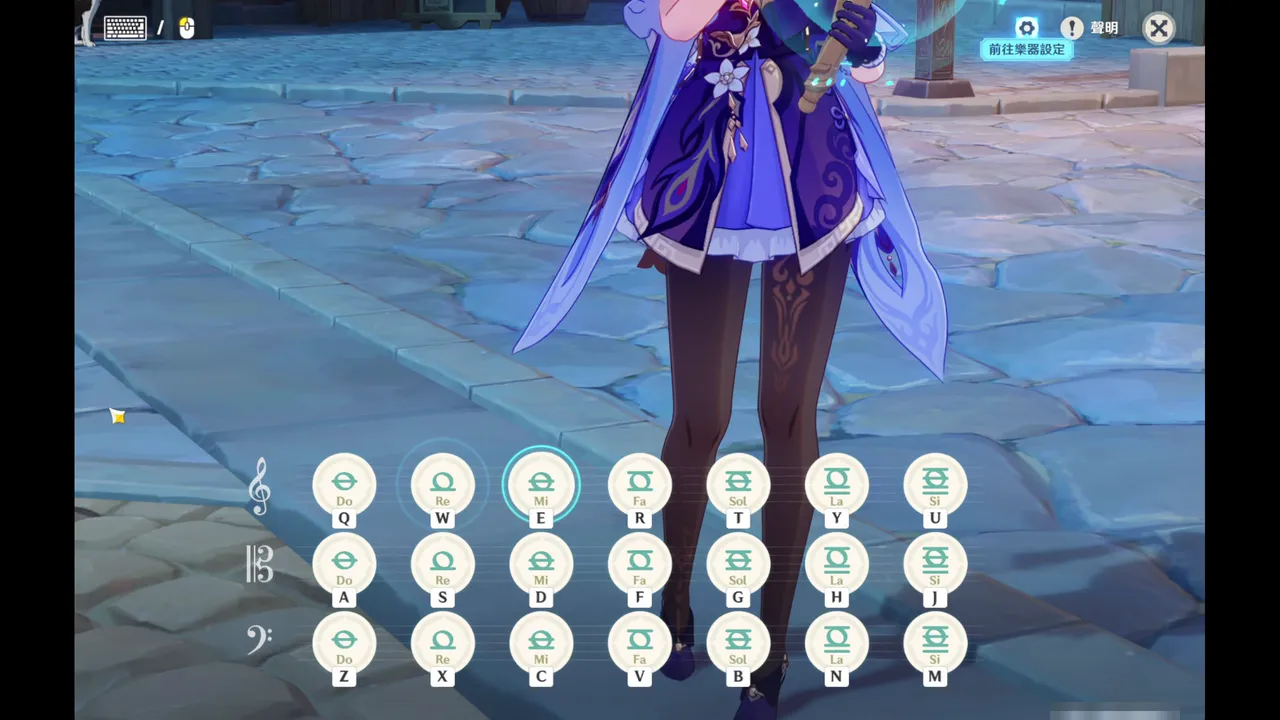
Which key plays which note
Three rows of seven keys, one octave per row.
| Keyboard keys | Notes |
|---|---|
| Q W E R T Y U | C5 to B5 |
| A S D F G H J | C4 to B4 |
| Z X C V B N M | C3 to B3 |
Play your first song in Genshin Impact
- 01
Open the instrument in Genshin Impact
Open the instrument screen and press a few keys by hand to check that it makes sound.
- 02
Choose the key profile
In DreamLyra, choose Genshin - 21 Key from the KEY MAPPING PROFILE list.
- 03
Pick a song
Find a song in the built-in store, or click SELECT MIDI FILE to open a MIDI file you already have.
- 04
Press play and switch back
Set START DELAY to 3 or 5 seconds, press play, then switch back to Genshin Impact before the countdown ends. Press F8 in the game to pause or resume.
Played in Genshin Impact with DreamLyra
Tips for Genshin Impact
- The lyre has no black keys, so sharps and flats play on a nearby white key. Songs in C major sound closest to the original.
- Click the Key button next to KEY to see which key fits the lyre best, or press Auto.
Questions
- Do I need AutoHotkey or a script?
- No. DreamLyra reads the MIDI file and presses the keys for you. There is no script or macro to write.
- Does it work on phone, Mac or console?
- No. DreamLyra is a Windows 10 / 11 program, so it plays Genshin Impact on a Windows PC only.
- Is it free?
- You can try it free for 3 days. After that, a lifetime license keeps it running. Songs in the store are bought separately with credits, and some are free.